Starting Programs on Boot in Linux
Using the System V Init process
Wanting to be able to set programs to automatically run when my computer turns on is a common issue. I usually have a variety of different programs running all the time on my Linux server, doing anything from recording webcam footage I want to go back and review, to watching for interesting tweets to print, to sending me text messages with NWS weather alerts, to running a Minecraft server. Many of these (like checking for new weather alerts every 30 minutes) can be easily scheduled to run at regular intervals using the Unix cron tool, but many others really have to be running all the time and just need to be started when the system first boots.
Luckily, the System V Unix standard exposes an easy way to control how these long-running processes (called daemons) can be started and stopped when the computer is booted and shutdown through the init system. Init is the very first process that the Linux kernel executes when you boot you computer, and init then goes on to spawn, or spawn the spawner of (or spawn the spawner of the spawners of,etc), every other process running on your computer. Likewise, when you go to turn off your computer, init is the process that tells every running daemon to clean up whatever it’s working on and exit so the system can shutdown cleanly. The question then becomes “how does init know when we’re turning on or turning off the computer, and how does it know which programs to start or stop at each point?”
Of course, since System V came out nearly three decades ago, programmers have developed alternatives to init, such as Upstart (which is used by Ubuntu), and systemd (which is used by Angstrom - Tutorial). Luckily, since System V was such an important part of Unix history, even when a distro uses one of these other systems, they usually still support the init protocol using /etc/init.d and /etc/rc[0-6S].d/ I’m going to describe for you here.
Run Levels
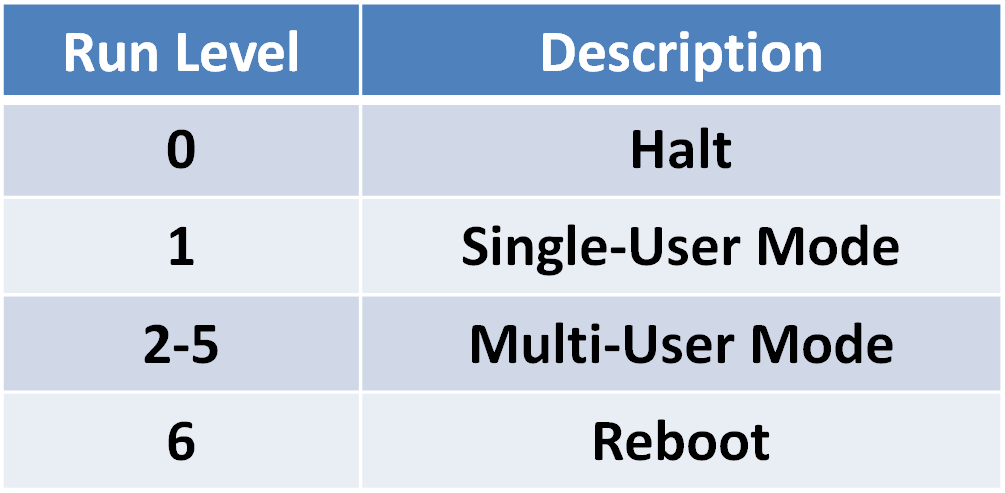
Signalling init as to what we want it to be doing is done through what’s called runlevels. I always think of runlevels like DEFCON; a simple indicator of what general state of readiness the computer needs to be in. Unfortunately, unlike DEFCON, runlevels aren’t quite clearly as defined as DEFCON levels:
- Runlevel 0 - This runlevel is for when an admin has told the computer to shutdown, so init sends signals to processes running which need to perform cleanup, and runs shutdown scripts to do things like unmounting hard drives and releasing resources on the network.
- Runlevel 1 - Single-User mode is usually for when something has gone wrong, so we want as little of the system running as possible. Runlevel 1 starts the bare minimum needed so that the superuser (root) can log in and play God while he fixes whatever is wrong for the peasants (otherwise known as normal users). Once the superuser has fixed whatever was wrong (corrupt filesystem, mis-configured daemon, etc), he will tell init to take the system to one of the other runlevels, at which point init brings up the rest of the services that normal users use, like graphical interfaces and file servers.
- Runlevel 2-5 - This is where the differences between different flavors of Linux get a little annoying. Runlevels two through five are the normal “multi-user” runlevels that systems spend most of their time in, providing various levels of usefulness for all of the normal users; what exactly that means is defined differently for every distribution. Usually, as you move to higher runlevels, init will start progressively more services, such as the graphical interface, etc.
- Runlevel 6 - Level six is much like runlevel 0, and is usually almost the same set of shutdown scripts, with the one difference that at the very last moment, instead of shutdown down, the computer should reset itself and come back up. Of course, any programs that you have running will definitely be stopped in either case, but if you know that the computer is just rebooting and not being shutdown to be put in cold storage, maybe you only want your daemon to say “hey! BRB!” instead of “Goodbye, cruel world!” Exactly what that difference implies depends on exactly what the daemon is doing.
/etc/init.d/
So init has eight different run levels (0-6 and “S”), which each have a corresponding set of programs that should be either started or stopped when the system enters that runlevel. Of course, now you want to add your own program to these glorious sets of lists, so that if the computer ever happens to be turned off, the programs will automatically come back up with it, instead of you having to manually log in and try and remember everything that you had running in the background the last time you rebooted your computer.
These magical lists are stored as eight directories of shell scripts in the /etc/ settings folder: /etc/rc0.d/ - /etc/rc6.d/ and /etc/rcS.d/ (which are often written using the shorthand /etc/rc[0-6S].d/). The problem is, having a shell script to start your program in eight different places is going to be a pain in the ass, come the time you ever need to make an edit to this script. To solve this, these eight directories actually contain no scripts at all, but just symbolic links pointing at master copies of all the scripts in a single directory: /etc/init.d/.
init.d
kenneth@KWF3:/etc/init.d$ ls
apparmor       hwclock-save                pppd-dns        stop-bootlogd
apt-cacher-ng  irqbalance                  procps          stop-bootlogd-single
atd            killprocs                   rc              tftpd-hpa
atop           lm-sensors                  rc.local        udev
bootlogd       mdadm                       rcS             udev-finish
console-setup  module-init-tools           README          udevmonitor
cron           networking                  reboot          udevtrigger
dbus           network-interface           rsync           ufw
dmesg          network-interface-security  rsyslog         umountfs
dns-clean      nmbd                        screen-cleanup  umountnfs.sh
failsafe-x     ondemand                    sendsigs        umountroot
fancontrol     plymouth                    single          urandom
grub-common    plymouth-log                skeleton        userstart
halt           plymouth-splash             smbd            vsftpd
hostname       plymouth-stop               squid3          x11-common
hwclock        postfix                     ssh
Depending on exactly which Linux you’re running, and exactly what services you have installed, your /etc/init.d/ folder will have various different files in it. The most useful file in this directory is the /etc/init.d/skeleton file, which is a shell script with all of the boiler plate already written for your script to behave properly when init, or an admin runs it to start or stop your daemon.
To write your own init.d script, copy this skeleton script:
# cp /etc/init.d/skeleton /etc/init.d/my-first-daemon
And then fill in all of the details about the daemon at the beginning of this script (bah! comments!), and then fill out the do_start() and do_stop() shell functions so that they, respectively, start and stop your daemon.
update-rc.d my-first-daemon defaults
Once you have your init.d script written, it’s time to properly create all of the symlinks to it in the eight /etc/rc[0-6S].d/ directories. Unfortunately, these symlinks all need to be made in a very specific format. Fortunately, generations of admins before you have been really lazy, so you’ll usually find a tool called “update-rc.d” which will do all of the hard work for you. All you have to do is tell it what your init.d script is named, and then tell it which run levels you’d like init to either start or stop your daemon in.
The vast majority of the time, you’ll want your daemon to start for the four multi-user modes, and stop for all the other modes. This typical setting can be described as “defaults,” which is a lot less verbose than the equivalent command which explicitly lists every runlevel under either start or stop:
# update-rc.d my-first-daemon start 20 2 3 4 5 .
stop 20 0 1 6 .
Notice the 20 immediately after start and stop; this is where in the transition sequence you want your daemon’s init.d script to be run. These numbers range from 00 to 99, and are only important if your daemon depends on other services (which it probably does…) like networking, ssh, etc. These sequence numbers, as well as the choice between starting or stopping a daemon, are actually encoded into the names of the symlinks, as follows:
rc0.d
kenneth@KWF3:/etc/rc0.d$ ls
K20apt-cacher-ng  K20userstart  README       S31umountnfs.sh  S60umountroot
K20atop           K25mdadm      S20sendsigs  S35networking    S90halt
K20postfix        K30squid3     S30urandom   S40umountfs
rc2.d
kenneth@KWF3:/etc/rc2.d$ ls
README            S20fancontrol  S25mdadm   S70dns-clean    S99ondemand
S20apt-cacher-ng  S20postfix     S30squid3  S70pppd-dns     S99rc.local
S20atop           S20userstart   S50rsync   S99grub-common
- Each symlink will start with either an S (for start) or K (for kill), indicating if that daemon should be started or stopped.
- Immediately after the S or K is the two digit sequence number dictating in what order all of the init.d scripts are run.
Luckily, you don’t really need to remember this. All you need to know is how to use the update-rc.d tool, and it does all the hard lifting and remembering for you.
UserStart - A Simple Example
Now that you know how to write an init.d script which will properly respond when init or root prod it, and how to tell init which runlevels you want your daemon started or stopped in, it’s time for a useful example I use on some of my systems.
userstart.sh
#! /bin/sh
### BEGIN INIT INFO
# Provides:          UserStart
# Default-Start:     2 3 4 5
# Default-Stop:      0 1 6
# Short-Description: Starts user daemons from ~/cron/startup.sh
# Description:       Users are able to start any personal daemons they
#                    like by adding them to ~/cron/startup.sh
#
### END INIT INFO

# Author: Kenneth Finnegan <kennethfinnegan2007@gmail.com>
#

PATH=/sbin:/usr/sbin:/bin:/usr/bin
DESC="Run every user's ~/cron/startup.sh script"
NAME=userstart
SCRIPTNAME=/etc/init.d/$NAME

# Function that starts the daemon/service
#
do_start()
{
	# Return
	#   0 if daemon has been started
	#   1 if daemon was already running
	#   2 if daemon could not be started

	cat /etc/passwd |
	while read PASSWDLINE; do
		TARGETUSER="`echo $PASSWDLINE | awk -F ':' '{print $1}' `"
		TUSERHOME="`echo $PASSWDLINE | awk -F ':' '{print $6}' `"

		STARTSCRIPT="$TUSERHOME/cron/startup.sh"
		if [ -x $STARTSCRIPT ]; then
			cd $TUSERHOME
			su -l -c $STARTSCRIPT $TARGETUSER &
		fi
	done

	return 0
}

#
# Function that stops the daemon/service
#
do_stop()
{
	# An obvious extension would be to call ~/cron/shutdown.sh here...

	# Return
	#   0 if daemon has been stopped
	#   1 if daemon was already stopped
	#   2 if daemon could not be stopped
	#   other if a failure occurred
	return 0
}

#
# Function that sends a SIGHUP to the daemon/service
#
do_reload() {
	#
	# If the daemon can reload its configuration without
	# restarting (for example, when it is sent a SIGHUP),
	# then implement that here.
	#
	return 0
}

case "$1" in
  start)
	[ "$VERBOSE" != no ] && log_daemon_msg "Starting $DESC" "$NAME"
	do_start
	case "$?" in
		0|1) [ "$VERBOSE" != no ] && log_end_msg 0 ;;
		2) [ "$VERBOSE" != no ] && log_end_msg 1 ;;
	esac
	;;
  stop)
	[ "$VERBOSE" != no ] && log_daemon_msg "Stopping $DESC" "$NAME"
	do_stop
	case "$?" in
		0|1) [ "$VERBOSE" != no ] && log_end_msg 0 ;;
		2) [ "$VERBOSE" != no ] && log_end_msg 1 ;;
	esac
	;;
  status)
       ;;
  #reload|force-reload)
	#
	# If do_reload() is not implemented then leave this commented out
	# and leave 'force-reload' as an alias for 'restart'.
	#
	#log_daemon_msg "Reloading $DESC" "$NAME"
	#do_reload
	#log_end_msg $?
	#;;
  restart|force-reload)
	#
	# If the "reload" option is implemented then remove the
	# 'force-reload' alias
	#
	do_stop
	case "$?" in
	  0|1)
		do_start
		case "$?" in
			0) log_end_msg 0 ;;
			1) log_end_msg 1 ;; # Old process is still running
			*) log_end_msg 1 ;; # Failed to start
		esac
		;;
	  *)
	  	# Failed to stop
		log_end_msg 1
		;;
	esac
	;;
  *)
	#echo "Usage: $SCRIPTNAME {start|stop|restart|reload|force-reload}" >&2
	echo "Usage: $SCRIPTNAME {start|stop|status|restart|force-reload}" >&2
	exit 3
	;;
esac

:
This script (which is based on /etc/init.d/skeleton) scans through each user’s home directory looking for a ~/cron/startup.sh script which, if it exists, this script executes as that user. I find this useful because the init system is designed to start full-blown daemons as root, but often I want to start programs as a normal user. This now lets me just add a call to my programs from ~/cron/startup.sh instead of having to go through all of the work of building an init.d script and installing it for every separate program.
Of course, this script has some glaring security issues; when a user can schedule something to run on startup, they can schedule things that go horribly wrong and make even booting a system to remove their startup.sh scripts kind of a pain in the ass. Also, having init run ANY ~/cron/startup.sh script for ANY user willy-nilly is kind of a bad deal. This all means that you should probably only deploy this script on a system where you inherently trust all your users, but then again, I have a rather unpopular opinion that Unix is an inherently insecure operating system all together…